
How to Create a Google Analytics 4 Property
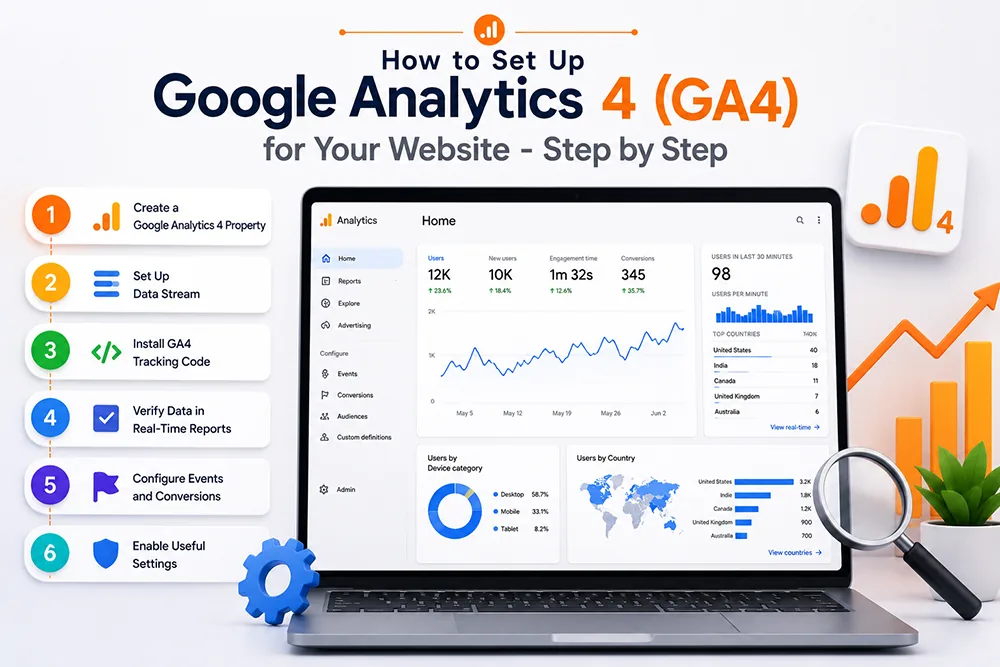
To set up GA4, go to analytics.google.com and sign in with your Google account. Click Admin, then Create Property. Enter your website name, select your time zone (India/Kolkata), and choose Indian Rupee as the currency. Click Next, select your industry category and business size. Choose your business goals - typically "Get baseline reports". Then create a Web data stream by entering your website URL and name. Google will generate a Measurement ID starting with "G-" - you will need this to add the tracking code to your website. Webomatic handles the complete GA4 setup for all client websites.
How to Add GA4 Tracking Code to Your Website
After creating your GA4 property and Web stream, Google provides a tracking code - a small JavaScript snippet containing your Measurement ID. This code must be added to every page of your website - ideally in the head section just before the closing head tag. For WordPress, you can use the Site Kit plugin by Google or a header footer code plugin. For custom PHP websites like those built by Webomatic, the code is added directly to the shared header include file - so it automatically appears on every page.
- The GA4 tracking code must be present on every single page - not just the homepage of your website.
- Add the GA4 script to the head section of your website - ideally via the shared header include file.
- Use Google Tag Manager to manage GA4 and other tracking codes without touching your website code.
- Verify installation using the GA4 DebugView or the Real-time report immediately after adding the code.
- Webomatic adds the GA4 tracking code to every client website during the final stages of the build process.
How to Set Up Conversion Tracking in GA4
GA4 automatically tracks some events - page views, scrolls, outbound clicks, and file downloads. But for business-specific conversions like form submissions, phone button taps, WhatsApp clicks, or thank-you page visits - you need to set up custom events and mark them as conversions. Go to GA4 Admin, then Events, and create new events based on your specific business goals. Mark key events as Conversions so they appear in your conversion reports. Webomatic sets up custom conversion events for clients based on their specific enquiry and lead generation mechanisms.
- Mark your contact form submission as a conversion event - it is your most important business goal.
- Track WhatsApp button clicks as a conversion - WhatsApp is a primary lead channel for Indian businesses.
- Track phone number click events as conversions for businesses that receive most enquiries via call.
- Use the Thank You page URL as a goal destination - an easy way to track confirmed form submissions.
- Webomatic configures custom conversion events in GA4 for all client websites based on their lead sources.
How to Exclude Your Own Visits From Google Analytics Data
If you or your team frequently visit your own website for checking or testing - these visits inflate your analytics data and skew the numbers. GA4 allows you to filter out internal traffic. Go to Admin, Data Streams, your web stream, and then Configure Tag Settings. Add your office IP address as an internal traffic filter. You also need to activate the filter under Admin, Data Filters. Webomatic excludes internal IP addresses from GA4 data for all client setups to ensure the analytics show only genuine visitor behaviour.
- Excluding your own visits prevents inflated session counts that make your traffic look higher than it is.
- Use whatismyip.com to find your office IP address to add to the internal traffic exclusion filter.
- If your office IP changes (dynamic IP), use Google Analytics opt-out browser extension as an alternative.
- Activate the internal traffic filter under Data Filters in GA4 Admin - it is inactive by default.
- Webomatic excludes office and team IP addresses from GA4 for all client setups during configuration.
A correctly set up GA4 is the foundation of data-driven digital marketing. Without it, you are making decisions without evidence. Webomatic installs, configures, and verifies Google Analytics 4 for businesses across Ahmedabad, Vadodara, Surat, Rajkot, and all of India - as part of every website project. Contact us at webomatic.in to get your GA4 set up correctly from day one.