
What POP3 Settings Do You Need to Configure Email?
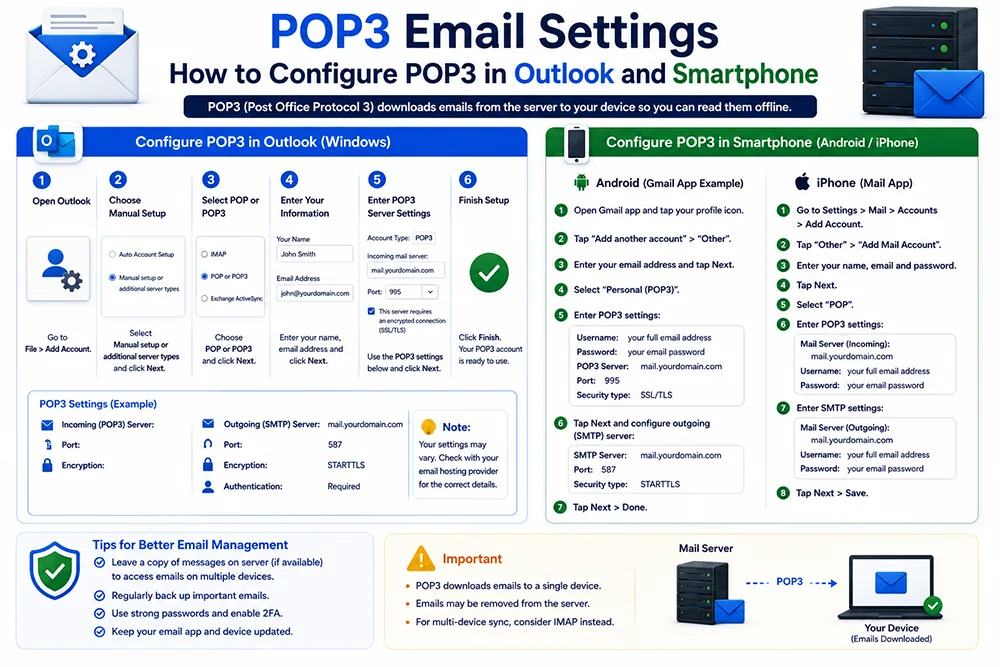
To configure POP3 email in any email client - Outlook, Thunderbird, or a smartphone - you need four key pieces of information: your email address and password, the incoming mail server (POP3 server) address, the incoming port number (110 for standard, 995 for SSL), and the outgoing mail server (SMTP) address with its port (587 or 465). These details are provided by your hosting company. Webomatic provides all email configuration settings to clients at the time of hosting setup.
How to Configure POP3 Email in Microsoft Outlook?
In Outlook, go to File, Add Account, and choose Manual Setup. Select POP or IMAP. Enter your name, email address, and then the incoming server (mail.yourdomain.in on port 995 with SSL) and outgoing SMTP server settings. Enter your email password. Click Test Account Settings to verify the connection. If it passes, your Outlook is ready. Webomatic assists all clients with Outlook email configuration - including troubleshooting connection errors during setup.
- Always use port 995 with SSL encryption for POP3 - never the unencrypted port 110 for business email.
- The incoming server name is usually mail.yourdomain.in or the server hostname provided by hosting.
- Use port 587 with STARTTLS or port 465 with SSL for the outgoing SMTP server in Outlook.
- Click "Test Account Settings" in Outlook after entering all details to confirm the configuration works.
- Webomatic configures Outlook email for all clients - in person in Ahmedabad or remotely via screen share.
How to Set Up POP3 Email on Android and iPhone?
On Android, go to Settings, Accounts, Add Account, and choose Other or Email. Enter your email and password. When prompted for account type, select POP3. Enter the incoming and outgoing server details provided by your host. On iPhone, go to Settings, Mail, Accounts, Add Account, and choose Other, then Add Mail Account. The process is similar. Webomatic walks clients through smartphone email setup and provides a reference sheet with all server settings for future use.
- Android email apps like Gmail support adding external POP3 accounts under Settings, Accounts.
- iPhone Mail app under Settings supports adding custom POP3 email under the Other account type.
- Use secure SSL settings on smartphones - unsecured connections risk email interception on public Wi-Fi.
- After setup, send a test email to yourself and reply to confirm both sending and receiving work correctly.
- Webomatic provides a printed or PDF email settings reference for all clients to avoid future setup confusion.
Common POP3 Email Errors and How to Fix Them
The most common POP3 errors include: authentication failures (wrong password or username format), connection timeouts (wrong port or SSL setting), email not downloading (server quota full or already downloaded by another device), and sent mail not working (wrong SMTP settings). Most errors can be fixed by double-checking server names, ports, and SSL settings against the details provided by your host. Webomatic troubleshoots all email configuration issues for clients - usually resolving them within one call.
- Authentication error usually means the password is wrong or the email address format is incorrect.
- Connection timeout means the wrong port or SSL setting is selected - double-check port 995 for POP3.
- If emails stop downloading, check if the server mailbox is full - delete old emails via webmail.
- SMTP errors in sending mean the outgoing server settings are incorrect - verify port 587 or 465.
- Webomatic resolves POP3 configuration errors for clients with remote support via TeamViewer or AnyDesk.
Correctly configured POP3 email ensures smooth business communication without disruption. Whether you are setting up Outlook for the first time or troubleshooting an existing configuration, getting the server settings right is the key. Webomatic provides complete email configuration support for clients across Ahmedabad, Vadodara, Surat, Rajkot, and all of India. Contact us at webomatic.in or call +91 99249 43005 and we will sort it out for you.