
Email Management in cPanel - Creating and Managing Business Emails
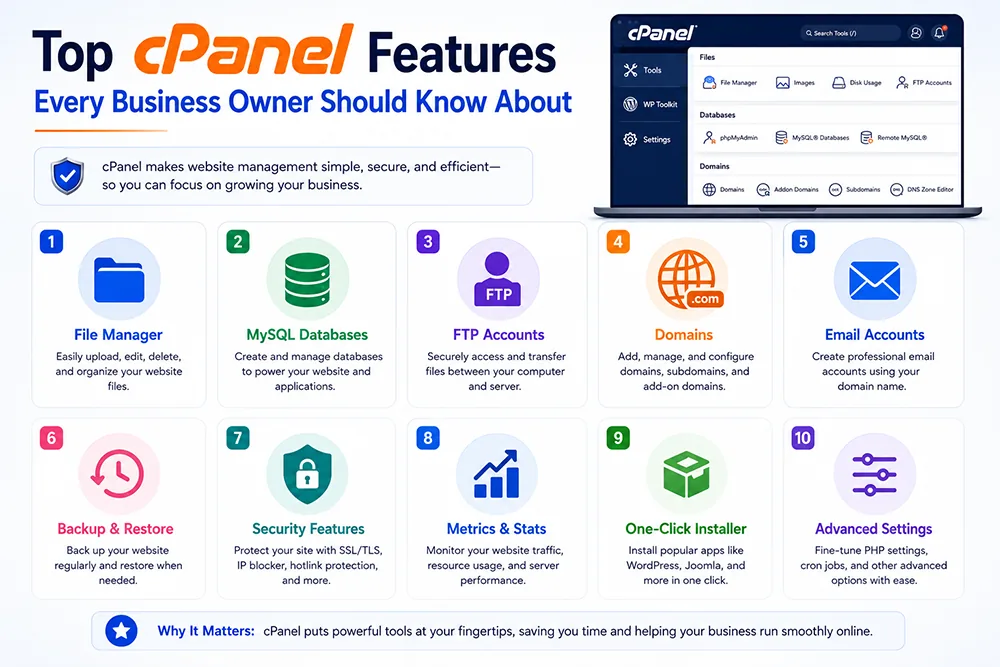
One of the most used features in cPanel is the Email Accounts section. Here you can create professional business email IDs like [email protected], set storage limits, change passwords, and access webmail directly from a browser. cPanel also supports email forwarders, autoresponders, spam filters, and mailing lists. Webomatic sets up all email accounts in cPanel for clients during the website launch process and configures them on Outlook or smartphones as required.
File Manager - Managing Website Files Without FTP
The File Manager in cPanel gives you a visual interface to browse, upload, edit, move, or delete files on your server - without needing FTP software like FileZilla. You can edit PHP or HTML files directly in the browser, extract ZIP archives, and set file permissions. It is especially useful for quick content changes or uploading a new image to your website. Webomatic uses File Manager for minor website updates when a client does not need a full development session.
- File Manager in cPanel shows your public_html folder where all website files are stored and served.
- You can upload files up to a certain size limit directly through File Manager - larger files need FTP.
- Always take a backup before editing any live website file through cPanel File Manager.
- File permissions (chmod) control who can read, write, or execute files on your hosting server.
- Webomatic uses File Manager for quick updates - larger changes are handled through proper development workflow.
SSL Management in cPanel - Installing and Renewing Certificates
cPanel includes an SSL/TLS Manager that lets you install, view, and manage SSL certificates on your hosting account. Most modern hosting plans include AutoSSL - which automatically installs and renews free SSL certificates for all your domains. You can also install paid SSL certificates for extended validation if required. Webomatic verifies SSL installation for every client website launched and ensures HTTPS is correctly configured for all pages.
- AutoSSL in cPanel automatically issues and renews a free Let's Encrypt SSL certificate for your domain.
- Check SSL expiry regularly in cPanel - an expired SSL causes browsers to show a security warning.
- You can install a custom or paid SSL certificate through the SSL/TLS Manager in cPanel.
- Force HTTPS redirect from cPanel ensures all visitors are served the secure version of your website.
- Webomatic sets up SSL and HTTPS redirect correctly for all client websites during the launch process.
Backup and Restore in cPanel - Protecting Your Website Data
The Backup section in cPanel allows you to download a full backup of your website - including all files, databases, and email accounts. You can also restore individual files or databases in case something goes wrong. Some hosting plans include automated daily backups, while others require manual backup management. Webomatic recommends clients take a manual backup before any major website change and ensures automated backups are configured where available.
- Download a full cPanel backup regularly and store it on your local computer or Google Drive for safety.
- The Backup Wizard in cPanel simplifies the full backup process into easy guided steps for non-technical users.
- Always test your backup restore process before an actual emergency - confirm it works correctly.
- Database backups are separate from file backups - both are needed to fully restore a dynamic website.
- Webomatic sets up automated backup schedules for all client hosting accounts where the plan allows.
cPanel is a powerful tool - but only if you know what is inside it. Understanding even the basics of email management, file uploads, SSL, and backups gives you more control and confidence over your online presence. Webomatic not only manages cPanel for clients but also takes the time to explain how to use the key sections. Contact us at webomatic.in or call +91 99249 43005 for all your hosting and cPanel needs.