
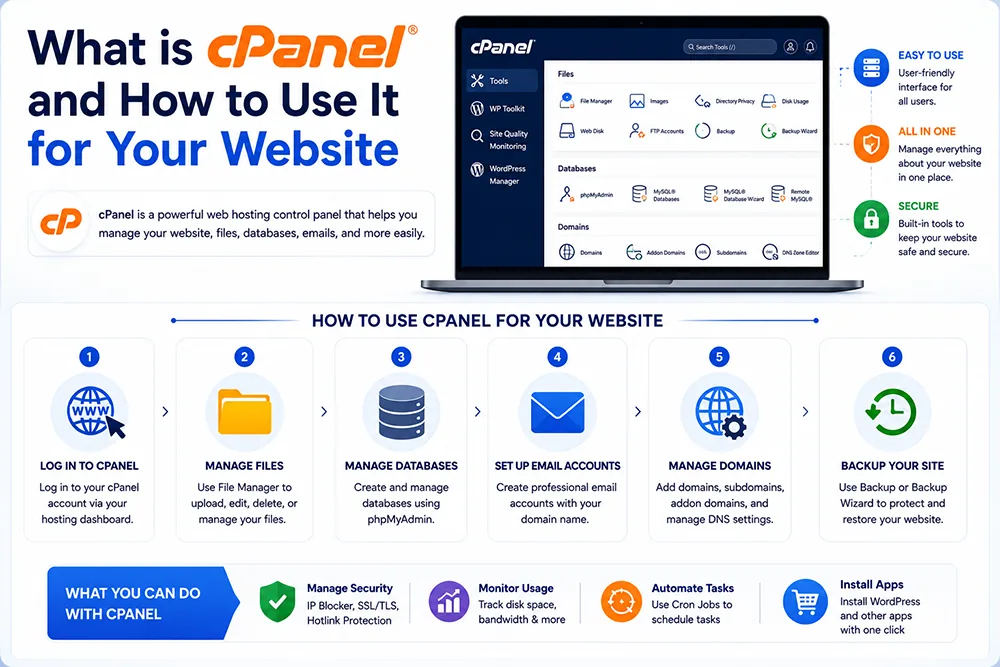
What is cPanel?
cPanel is a web-based control panel that comes with most Linux-based hosting plans. It provides a graphical interface to manage all aspects of your hosting account - without needing any technical command-line knowledge. From creating email accounts to uploading files, managing databases, and installing applications - cPanel makes hosting management accessible for non-technical business owners. Webomatic sets up and configures cPanel for all clients and provides basic orientation on using it.
What Can You Do Inside cPanel?
cPanel is packed with tools for managing every aspect of your hosting. You can create and manage email accounts, view website files using File Manager, manage MySQL databases, check bandwidth and storage usage, install SSL certificates, create subdomains, and set up cron jobs. It also includes tools for website backups and security settings. Webomatic uses cPanel to manage client hosting efficiently and teaches clients how to access basic functions independently.
- File Manager in cPanel lets you upload, edit, and organise website files without FTP software.
- Email Accounts section allows you to create, manage, and set passwords for all domain email IDs.
- MySQL Databases tool lets you create and manage the database your website or CMS relies on.
- Softaculous App Installer in cPanel allows one-click installation of WordPress and other CMS platforms.
- The Backup Wizard in cPanel lets you download a full backup of your website files and database.
How to Access Your cPanel?
You access cPanel through a URL - typically yourdomain.com/cpanel or yourdomain.com:2083. Your hosting provider sends you the login credentials when your hosting account is activated. The interface is menu-driven with icons for each feature. It is designed for non-technical users - but can be overwhelming at first if you are unfamiliar with hosting concepts. Webomatic provides all clients with their cPanel credentials and guides them on the key sections they will use regularly.
- cPanel login URL is usually yourdomain.com/cpanel or the IP address of your server followed by :2083.
- Never share your cPanel login credentials with anyone outside your trusted technical team.
- Change your cPanel password immediately after receiving it from your hosting provider.
- Enable two-factor authentication in cPanel security settings for an extra layer of protection.
- Webomatic retains cPanel access only for maintenance purposes - with client knowledge and permission.
What is the Difference Between cPanel and WHM?
cPanel is the end-user control panel used to manage a single hosting account. WHM (Web Host Manager) is the administrative panel used by hosting providers and resellers to manage multiple cPanel accounts on a server. If you run a hosting reseller business, WHM is what you use to create and manage individual client cPanels. Most regular business website owners only interact with cPanel - not WHM. Webomatic manages WHM-level settings on behalf of clients when required.
- WHM is accessed at yourdomain.com:2087 and requires a root or reseller-level username and password.
- Hosting providers use WHM to allocate resources, create cPanel accounts, and monitor server health.
- cPanel is the client-facing panel - WHM is the administrative layer above it for server management.
- Reseller hosting plans give you WHM access to create and manage multiple client hosting accounts.
- Regular business website owners never need to access WHM - cPanel is sufficient for all day-to-day needs.
cPanel simplifies hosting management enormously - making tasks that once required a server administrator accessible to any business owner. Whether you need to create a new email ID, check your storage usage, or take a backup - cPanel has you covered. Webomatic configures cPanel for every client website and provides support whenever you need help navigating it. Contact us at webomatic.in or call +91 99249 43005.